Remote Workers Are Your Biggest IT Security Risk. Here’s the Fix.
13th October, 2026
Quick answer: Remote working IT security comes down to four things: knowing which devices touch your data, protecting every login with multi-factor authentication, keeping company files in the cloud rather than on laptops, and training staff to spot phishing at home. Your people are not the problem. Unmanaged devices, shared home networks and weak sign-in rules are. Fix those and hybrid working becomes as safe as the office.
Most Aberdeen businesses moved to hybrid working quickly, often in a matter of days. Laptops went home, staff logged in from kitchen tables and the job got done. Few firms went back and checked how that setup was built. Years later, plenty of companies still run on arrangements that were only ever meant to be temporary.
That matters, because the office used to do a lot of security work for you without anyone noticing. A firewall sat on the edge of the network. Devices were in one place. Someone in IT could walk over and check a machine. At home, none of that applies. This post explains where the real risks sit and the practical steps that close them.
Why remote workers create more risk than office staff
Remote staff are no less careful than anyone else. The risk comes from the environment around them. In the office, every device sits behind a business-grade firewall and connects to a network you manage. At home, the same laptop shares a broadband router with smart TVs, games consoles and a teenager’s downloads.
Home routers often still run the default password and old firmware. Personal phones get used to check work email. Staff print sensitive documents on home printers and leave them on the kitchen table. Each of these is small on its own. Together, they create gaps an attacker can use.
There is also a visibility problem. When nobody can see which devices hold company data, nobody can tell when one goes missing, falls behind on updates or picks up malware.
The five remote working risks we see most often
Across the businesses we support in the North East, the same issues come up again and again.
Unmanaged personal devices. Staff use their own laptops or phones for work, with no control over updates, antivirus or encryption.
Weak or reused passwords. One leaked password from a shopping site can unlock a work account if it was used twice.
Files saved locally. Documents live on the desktop of a laptop instead of in a shared, backed-up location.
Phishing aimed at home workers. Fake delivery texts, “IT support” calls and invoice scams are harder to check when a colleague isn’t sitting next to you.
Insecure home and public Wi-Fi. Old routers, shared networks and coffee shop hotspots expose traffic and devices.
None of these needs expensive technology to fix. They need clear rules and the right Microsoft 365 settings.
Start with visibility: know every device
You can’t protect what you can’t see. The first step is a simple list of every device that accesses company email or files, who uses it and whether it belongs to the business or the employee.
Microsoft Intune, which is included in Microsoft 365 Business Premium, makes this practical. Business laptops are enrolled so you can push updates, enforce encryption and wipe them remotely if they are lost. Personal phones can be handled with app protection, which secures the work apps without touching personal photos or messages. Staff tend to accept this far more readily than full control of their own phone.
Once devices are visible, you can set a basic rule: only healthy, up-to-date devices get access to company data.
Lock down sign-in with multi-factor authentication
Stolen passwords remain one of the most common routes into a business. Multi-factor authentication (MFA) stops most of these attacks because a password alone is no longer enough. If you only make one change after reading this, make it this one.
A few points make MFA work well for remote teams:
Use an authenticator app rather than text messages where possible.
Turn it on for every account, including directors and shared mailboxes.
Use conditional access so sign-ins from unusual countries or unmanaged devices are blocked or challenged.
We cover why this matters in more detail in our guide to what happens after a cyber attack. Most incidents we’re called into began with a single compromised login.
Keep company data off laptops
When files sit on a laptop, a lost bag or a failed hard drive becomes a data loss incident. When files live in SharePoint, OneDrive or Teams, the laptop is just a window onto them.
Moving data to the cloud also fixes version chaos. Staff stop emailing attachments back and forth and work on the same document at once. If you’re unsure where different types of file should go, our post on SharePoint vs OneDrive vs Teams sets out a simple structure.
Back up your Microsoft 365 data separately too. Microsoft keeps the service running, but recovering deleted or encrypted files over the long term is your responsibility.
Make home networks safer without visiting every house
You don’t need to send an engineer to every employee’s home. A short set of guidelines goes a long way:
Change the default router password and keep its firmware updated.
Use a separate guest network for smart devices where the router supports it.
Avoid public Wi-Fi for work, or use a mobile hotspot instead.
Lock the screen when stepping away, even at home.
On the business side, modern endpoint protection and DNS filtering protect the device itself, wherever it connects. This is far more effective than relying on a VPN back to an office server, which is often slow and becomes a single point of failure.
Train people for the threats they face at home
Phishing attacks change their tactics for remote staff. Attackers know people can’t lean over and ask a colleague whether an email looks right. Short, regular training helps far more than a once-a-year presentation.
Focus on a few habits: check the sender address, never approve an MFA prompt you didn’t start, and confirm any payment change by phone using a known number. Make it easy and blame-free to report a suspicious email. The faster someone speaks up, the smaller the damage.
A traffic light check for your remote working setup
Use this quick review to see where your business stands.
Green: every device is enrolled and up to date, MFA is on for all accounts, files live in Microsoft 365 with a separate backup, and staff get regular phishing training.
Amber: MFA is on for most people, but some personal devices access email without controls, or some files still sit on laptops.
Red: no device list, MFA missing for some accounts, a VPN to an office server is the main protection, and no training in the last year.
If you landed in amber or red, you’re not alone. Most of the businesses we speak to are somewhere in the middle.
Protect leavers and lost devices too
Remote working makes offboarding harder. A laptop at someone’s house is easy to forget when they leave, and old accounts stay active longer than they should. Build device return and account removal into your leaver process. Our secure leaver checklist walks through each step.
The same applies to lost or stolen devices. With Intune in place, you can wipe company data remotely within minutes rather than hoping the laptop was encrypted.
Frequently asked questions
What is the biggest security risk with remote working?
Unmanaged devices and stolen passwords cause the most problems. A laptop without updates or a login without MFA gives attackers an easy way in, regardless of where the employee works.
Do remote workers need a VPN?
Not always. If your files and apps are in Microsoft 365, a VPN to an office server is often unnecessary. Device management, MFA and conditional access usually give better protection with less frustration.
Should staff use personal devices for work?
They can, with controls. App protection policies keep company data inside managed work apps on a personal phone, and let you remove that data if the person leaves.
How does Cyber Essentials apply to home workers?
Cyber Essentials includes home working devices that access company data. They need to meet the same rules on updates, firewalls and secure configuration as office devices.
How long does it take to secure a remote workforce?
For a business of 10 to 50 people, the core controls can usually be in place within a few weeks, depending on how many devices need to be enrolled.
Get a clear picture of your remote working risk
If you’re not sure how your hybrid setup would stand up to an attack, we can help. Our cyber security team offers a remote working security review that checks devices, sign-in settings and data storage, then sets out the gaps in plain English. Get in touch to book yours.
Patch Tuesday October 2026 fixed over 1,400 Microsoft flaws, including an exploited zero-day. What it means for your business and how to prioritise updates.
We worked with Aberdeen oil service company, Unity Well to migrate the management of their devices from on-site infrastructure to Microsoft’s cloud based Azure Active…
We completed a data migration project for an Aberdeen engineering company, Caledonia Services. We migrated their corporate data from on-site infrastructure to cloud based storage…
✓ Takes 3 minutes ✓ No obligation ✓ Instant results
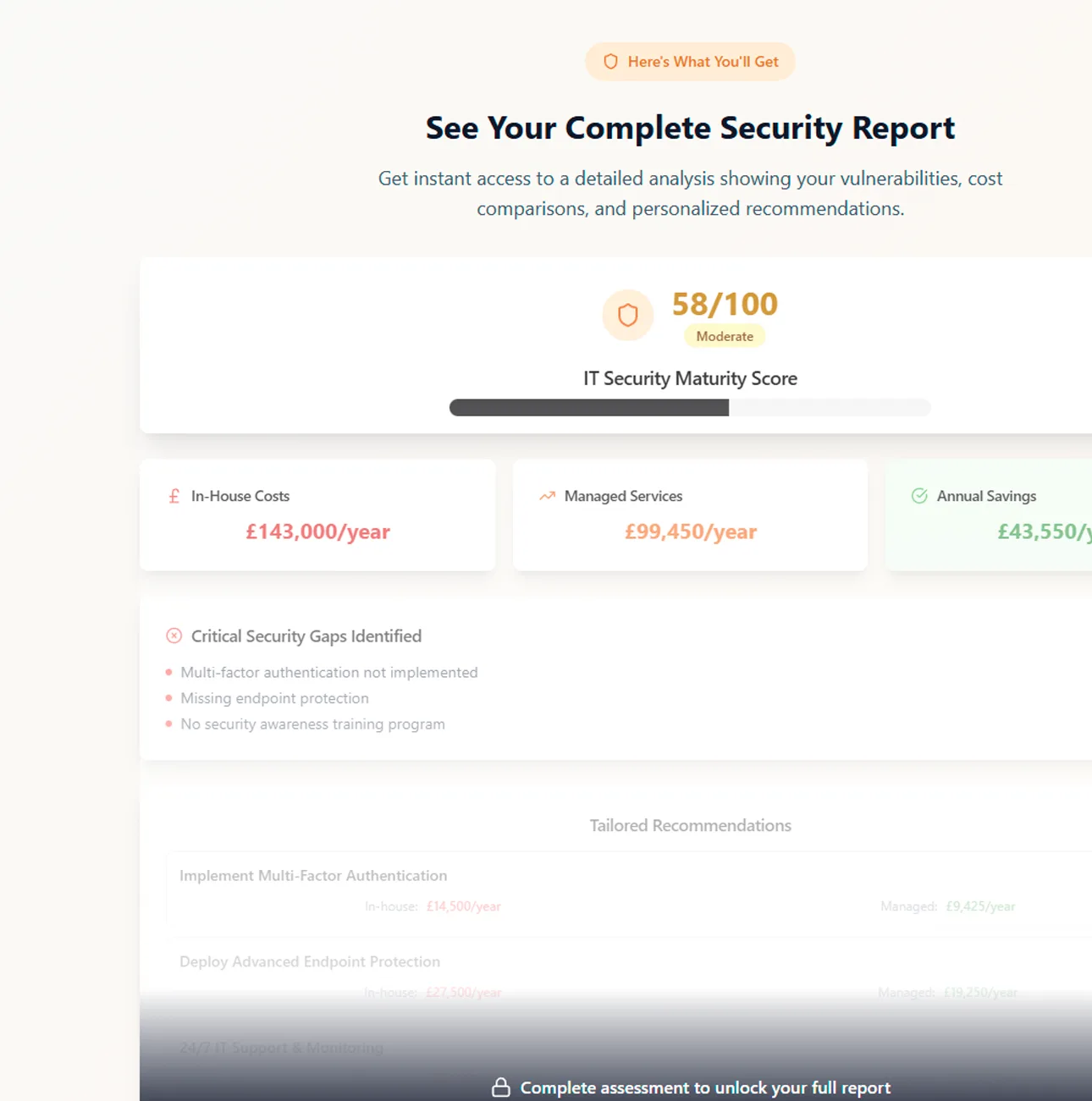
Get a comprehensive analysis of your IT infrastructure and security posture. See exactly where you're vulnerable and how much it's costing your business.