How to Spot a Phishing Email in 2026 (They’ve Got Better)
How to spot a phishing email in 2026: AI has fixed the typos, so judge the request instead. The warning signs that still work, plus…


Quick answer: OneDrive is for your own work in progress, SharePoint is where files the business owns should live, and Teams is a window onto SharePoint rather than a storage place of its own. Get that split right and version confusion, orphaned files and messy leaver handovers mostly disappear.
Walk into most Aberdeen offices we support and you will find the same thing: a finance spreadsheet in someone’s OneDrive, three versions of the same quote in a Teams chat, and a SharePoint site nobody has opened since it was set up. Nothing is broken exactly. It just costs everybody ten minutes a day and creates a real problem the week somebody leaves.
All three tools store files in the same underlying system. Microsoft’s own documentation is clear that when you upload a file to the Files tab of a Teams channel, that file is stored in a SharePoint site (Microsoft, SharePoint business requirements). OneDrive is a personally secured area of that same platform.
So the question is never really “which app”. It is “who does this file belong to?”. If the answer is you, it belongs in OneDrive. If the answer is the business, it belongs in SharePoint. Teams is how people get at the SharePoint copy without having to think about SharePoint.
OneDrive is the digital equivalent of your own desk drawer. Drafts, notes, the half-finished proposal you are not ready to show anyone, the personal copy of your expenses form. It is private until you share it.
Two things worth knowing about it. First, anything you share from OneDrive is shared by you personally, so the access sits with your account rather than with the team. Second, files saved in a Teams chat (rather than a channel) go into the sender’s OneDrive, which is why so many shared documents quietly end up owned by one person.
That second point is the one that bites. In our work with SME clients, the single most common cause of a painful leaver process is a document that everybody used but only one person owned. We wrote about the wider version of that problem in our secure leaver checklist.
SharePoint is the shared filing system. Client folders, project documents, policies, templates, contracts, the price list everybody quotes from. Anything that needs one trusted version belongs here.
The advantage is not really storage. It is that permissions follow the site rather than the person. Someone joins the sales team, they get the sales site. Someone leaves, you remove them and nothing goes missing with them. You also get version history, so the last three edits are recoverable without anyone hunting for “Quote_FINAL_v4”.
Most small businesses do not need a complicated design. Something like this works for a team of five or fifty:
If you cannot explain where a new document goes in one sentence, the structure is too complicated.
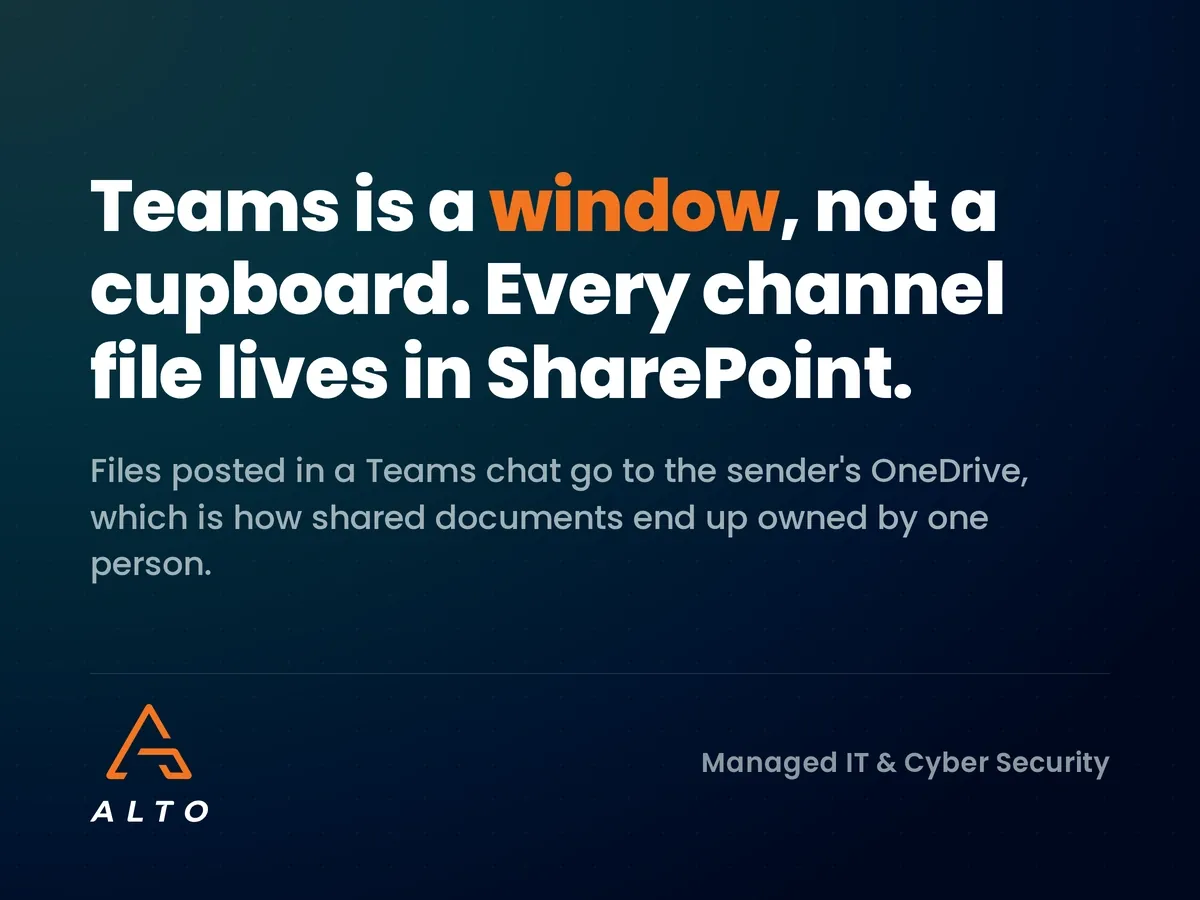
Teams is a conversation layer. Chat, calls, meetings, and a Files tab that shows you the SharePoint library sitting behind the channel. It is genuinely the best place to work on a document while people talk about it.
The mistake is treating the Files tab as a storage decision. It is not. Every Teams channel you create quietly creates a SharePoint site, so creating teams casually creates storage sprawl that nobody is tracking. If you have thirty teams and twelve are dormant, you now have twelve unmanaged file stores.
A rule that works: create a Team when a group of people need to talk regularly, not when they need somewhere to put a file.

Ask three questions in order, and stop at the first yes.
Anything you would be uncomfortable losing if one laptop disappeared should not be sitting only in OneDrive.
A lot of the businesses we work with in Aberdeen and Aberdeenshire are project-based: energy services, engineering, professional services, contractors. Project work has a shape that punishes bad file structure. Documents get shared with clients and subcontractors, teams change part way through, and records need to be findable years later for warranty, audit or contract reasons.
Two consequences follow. Sharing outside the business happens constantly here, so external access needs to be deliberate rather than accidental. And when a project team disbands, the files need to survive as a business record rather than living in the OneDrive of a project manager who has moved on to another contract.
There is a compliance angle too. If you hold client data covered by contract terms or by UK GDPR, “we think it is in someone’s OneDrive” is not an answer you want to give during an audit or after an incident. Our post on the first 72 hours after a cyber attack covers why knowing where data lives changes how quickly you can respond.
Files dropped into a one-to-one chat land in the sender’s OneDrive. Six months later nobody can find them, and the sender may not still work with you.
Syncing whole libraries to every laptop makes conflicts and duplicates more likely. Sync the folders people genuinely work in offline, and use the browser or Teams for the rest.
Twelve levels of nesting made sense on a file server. In SharePoint it hides everything from search, which is the main way people find things now.
Convenient, and it makes a document reachable by anyone the link is forwarded to. Default your organisation to “people in your organisation” and use specific-people links for clients.
Every new Team creates a SharePoint site. Without a light approval step you end up with storage nobody owns. This is the same pattern as unmanaged AI tools, which we covered in Shadow AI Is Already in Your Business.
You do not need a big migration project. A realistic sequence for a business of ten to sixty people:
Most of the value comes from steps one and four. The rest can happen over a quarter.
The tools are not competing. OneDrive holds your work, SharePoint holds the company’s, and Teams is how people reach the company’s work while they talk about it. Almost every file problem we are called in to fix comes back to business records living in a personal space, or a Team created without anyone deciding who owns what is inside it.
Your Monday job: pick the three documents your business could least afford to lose, and check whether they live in SharePoint or in one person’s OneDrive.
No. Teams has no file storage of its own. Files posted in a channel are stored in that team’s SharePoint site, and files sent in a chat are stored in the sender’s OneDrive.
SharePoint, if the business owns them. OneDrive access is tied to an individual account, so anything the company depends on should sit in a SharePoint site where permissions belong to the team.
You already have it. Every Team is backed by a SharePoint site whether you open SharePoint or not. The question is whether that storage is structured deliberately or created by accident.
Use specific-people sharing links from SharePoint rather than open links, set an expiry date where the platform allows it, and review external access at the end of each project.
Their OneDrive is retained for a configurable period after the account is deleted, and can be handed to a manager, but only if someone does that before the retention window closes. Moving business files out of OneDrive in the first place is the more reliable fix.
If your file structure grew rather than being designed, a short review usually pays for itself in found time alone. Alto works with businesses across Aberdeen and Aberdeenshire on Microsoft 365 structure, permissions and security. Book a consultation and we will map where your files actually live and what to change first.
Book a Microsoft 365 file structure review
We will map where your files actually live across OneDrive, SharePoint and Teams, check your sharing and permissions, and tell you what to change first.